-
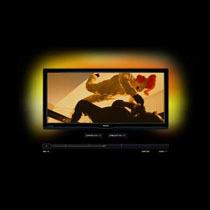 Philips CinemaOne 21:9 HDTV Ad Online[teaser]A far cry from traditional internet advertising, Philips’ new ad shows off the Philips Cinema in a way only the web can.[/teaser] With an aspect ratio of 21:9, the Cinema may be the next big step for televisions. Showing a full theater ratio means no picture cropping, and no more black bars on those blockbuster action movies. It’s a niche product for a very specific consumer, the average television watcher doesn’t need this, but for the enthusiast, watching films the way they were meant to be seen is a very big deal. Faced with the challenge of just how to show off this new technology, Philips turned to ad agency Tribal DDB, who turned out the two minute and nineteen second crawl through an ongoing shootout between a police team and a group of criminals dressed as clowns. It’s a breathtaking scene, but the true focus is on the television. Viewers are able to interact with the ad switching from 21:9 to the now standard 16:9, and turning on and off the much touted Ambilight effect. The ad can be viewed online HerePosted Mon Jul 6, 2009 at 12:05 PM PDT by:
 -
 FUNimation Announces 'Burst Angel' for Blu-ray[teaser]Another anime complete collection will explode onto high-definition this fall. [/teaser] FUNimation will bring the popular cyberpunk anime series 'Burst Angel' to Blu-ray on September 29. Specs and supplements haven't been announced yet, but the three-disc set will include all 24 episodes of the series plus the "Infinity" OVA. Suggested list price for the Blu-ray set is $79.98. You can find the latest specs for 'Burst Angel' linked from our Blu-ray Release Schedule, where it's indexed under September 29.Posted Mon Jul 6, 2009 at 06:00 AM PDT by:
 -
 20th Century HD AdvisorEditor's Note: Each Friday, High-Def Digest's own HD Advisor will answer a new round of questions from our readers. If you have home theater questions you need answered, send an email to [email protected]. If you've already sent a question and don't see it answered yet, please be patient as we work our way through them. To browse through previously answered questions, visit the main HD Advisor page. Answers by Joshua Zyber IMAX Digital Theaters Q: I was extremely disappointed in the IMAX digital showing of the new 'Star Trek'. I went expecting the 70mm experience, and found it was basically a 2-projector digitally produced image. Although I have not compared it to the “standard” theater release, I did some research and found there is a great deal of controversy about the IMAX label being used on something seriously inferior to 70mm IMAX film. How do you weigh in on this? A: As you've noted, there are two types of IMAX theater out there. The original IMAX configuration consists of huge screens (approximately 72'x53'), and movies projected from 15-perf, 70mm film stock (referred to as IMAX 15/70). IMAX film has a frame size almost 10 times larger than traditional 35mm, and even 3 times larger than standard 65mm stock. Content natively shot on IMAX film, such as the nature documentaries and short subjects that routinely play in IMAX theaters, exhibit breathtaking clarity and detail when projected in their original format. When Hollywood movies shot on 35mm film are projected in IMAX 15/70 theaters, the image is blown up to the larger film stock through a process known as "DMR," which stands for "Digital Re-Mastering." (Yes, the letters are jumbled, but "DRM" is already an acronym for "Digital Rights Management," which is something else entirely.) In recent years, the IMAX corporation has shifted to digital projection. Newer IMAX theaters utilize two 2k-resolution DLP projectors. Digital IMAX theaters also usually have much smaller screens, averaging 58'x28'. Personally, I'm with Aziz Ansari on this. I feel that digital IMAX theaters are essentially false advertising. The company lures audiences in with the IMAX name, which promises a huge screen theatrical experience. What you get instead is a screen barely larger (sometimes not even) than a standard theater, using projectors the same resolution as any other DLP cinema. The company does not distinguish one type of theater from another in its branding. You have to do your research beforehand to find out which type of IMAX you'll be getting at an IMAX theater. Really rubbing salt in the wound, most theaters add a surcharge to IMAX ticket prices. Furthermore, I have to say that I'm not a fan of the DMR upconversion process, regardless of whether the results are projected in a 15/70 theater or a digital theater. (I have confirmed with IMAX that movies projected in their digital theaters also undergo DMR upconversion.) From their own description of it (emphasis mine): "The image on a 35mm film frame is comprised of a fine grain structure like that of all photographic images. This grain when projected on to the IMAX screen looks like a TV channel that isn't quite tuned to the station. Removing this grain while preserving the quality of the underlying image is the basis of IMAX DMR. To create the brightness and clarity that audiences have come to expect from The IMAX Experience®, IMAX uses a proprietary computer program to make the images sharper than they were originally, while colors are adjusted for the unique technically superior characteristics of the IMAX screen." In other words, to convert 35mm movies to the "IMAX Experience," the company digitizes the footage, applies Digital Noise Reduction to remove grain, and then applies artificial sharpening and Edge Enhancement to sharpen the picture back up. You'll note that, in our Blu-ray reviews here at High-Def Digest, we frequently complain about the negative consequences of DNR and EE in video transfers. As bad as those artifacts look on your HDTV at home, the problems are only magnified on a large theatrical screen. IMAX will argue that the proprietary computer programs they use for the DMR process are more sophisticated than those used for home video. I beg to disagree. Every IMAX DMR presentation I've seen has exhibited an obvious lack of textural detail and consistent (often severe) edge ringing artifacts. As a videophile, I do not recommend viewing Hollywood movies in an IMAX theater, except for special cases where portions of the movie were photographed on real IMAX film, such as 'The Dark Knight' or 'Transformers: Revenge of the Fallen'. In those instances, you should seek out an IMAX 15/70 theater. In digital projection, the IMAX sequences are downconverted to the same 2k resolution as the rest of the film. However, be warned that, as good as the IMAX scenes in those movies will look in 15/70, the rest of the 35mm footage will have undergone DMR tinkering. For my money, I prefer to view 35mm movies in a quality 35mm theater rather than an IMAX theater. If the movie was photographed digitally or utilized a Digital Intermediate during post production, the best option is to find a good (non-IMAX) DLP theater, which will project the original digital file provided to them by the studio, rather than a DMR'ed manipulation of it. Region-Free Blu-ray Playback Q: I assume you have region-free Blu-ray capabilities as I've seen you review imports in the past. I've been looking into getting a backup player which is not region locked or at least switchable. The other issue is my trusty old DVD player is dying and preferably any multi-region Blu-ray player would be multi-region for DVD as well... and if it's at all possible, throw decent DVD upscaling into the bargain. Most of my Googling around on this issue has thrown up two options: very cheap and nasty looking south-east Asian units which look like they'll fall apart out of the box, and very expensive professional modifications of brand name players which presumably void the warranty. What other options have you found? A: I'm only aware of two Blu-ray players that can be made region-free for Blu-ray playback out-of-the-box just by entering special codes on the remote control. I use an LG BH200 Blu-ray/HD DVD combi player for this purpose. I managed to pick one up at the tail end of the model's life cycle, when it was being blown out at discount prices by the Best Buy chain. With the right sequence of numbers on the remote control, the player can be switched to a designated region. (There is no "all-region" setting, so you may need to change the region depending on the disc being watched.) In addition, the player also has excellent DVD upconversion from the QDEO processing chip. On the other hand, the unit has a number of quirks. If you play a disc with 50 Hz content on it, the player cannot convert it to 60 Hz. You will need to connect the player to a display compatible with 50 Hz signals. Also, the unit has a reputation for being glitchy with many newer Blu-ray discs, and HD DVD discs in general. Unfortunately, the model is long-since discontinued, and LG's firmware support for it is sketchy at best. Recently, the Momitsu BDP-899 hit the scene, likewise promising region switching with a remote control sequence. From my understanding, it has a similar limitation regarding 50 Hz content. I have not used this player myself, and cannot comment on its quality. Given Momitsu's history, I wouldn't expect much out of its DVD upconversion. Prior Momitsu DVD players were based on poor, flag-reading deinterlacing chips. The other option is to buy a brand name player that's been hardware modified to remove region restrictions. As you've found, these tend to be very expensive, and the modification voids any manufacturer warranty. Also, depending on the model, you may find that some don't support 50 Hz content at all. Although I'm not at liberty to post the details (please don't email to ask; I won't respond), I've heard that there is a bootleg firmware available for one recently-released Blu-ray player that will allegedly hack it for region-free playback at no extra expense. I have not actually tried this firmware myself. Again, this modification is not authorized by the manufacturer, and will void the warranty. Attempt it at your own risk. DTS-HD Master Audio on 'Terminator 2' Q: I recently purchased the 'Terminator 2: Skynet Edition' Blu-ray. It has a 6.1 DTS Master Audio soundtrack advertised on the box. When playing this Blu-ray, my Denon 3808CI shows 6 channels as being input, so it looks to me like its 6.1 discrete channels. However, there is some discussion in the forums that claim this Blu-ray disc is really a 5.1 soundtrack with a matrixed sixth channel, like some DTS-ES DVDs use. For DTS Master Audio, are all channels always discrete? Or, does the DTS MA spec also allow for matrixed channels, like the DVDs have? And, specifically, does this 'T2' Blu-ray actually have a 6.1 discrete channel soundtrack, or a 5.1 soundtrack with a matrixed sixth channel? A: The DTS-HD Master Audio spec allows for up to 7.1 discrete channels of audio on Blu-ray. According to this post at the Home Theater Forum by disc producer Van Ling, the Master Audio soundtrack on the Skynet Edition Blu-ray of 'Terminator 2' is a 5.1 track with a matrixed sixth channel. Homework Assignment: You Be the Advisor Some questions that the HD Advisor receives are best answered by our readers. If you can help to answer the following question, please post your response in our forum thread linked at the end of this article. Your advice and opinions matter too! CCFL Backlights in LCD TVs Q: Why do a lot of modern LCD TVs employ some form of CCFL strobing for adjusting the level of the backlight? For those that are sensitive to this, setting the backlight lower produces a visible rainbow effect in high contrast scenes, not unlike what was seen with DLP displays. Do LED backlights dim via the same method? Check back next week for another round of answers. Keep those questions coming. Joshua Zyber's opinions are his own and do not necessarily reflect those of this site, its owners or employees.Posted Thu Jul 2, 2009 at 12:00 PM PDT by:
 -
 A Cost-Conscious Renters Guide For Building Your High-Def Home Theater[teaser]High-Def Digest walks you through a series of tips and tricks for putting together an impressive high-def home theater setup that won't break the bank or cost you your deposit![/teaser] By Michael S. Palmer “I live in apartments. Two story town homes. Condos. Even houses. I live alone. I have roommates. I am single. I am married. I live in the top floor. I live in the basement. I have neighbors above, below, and next-door. Hello, my name is Renter. And I am an HD-junkie.” Hello Renter, It starts so innocently. I know. You see an HDTV for the first time -- maybe in a store, maybe at a friend’s home -- and you know you want it. No… you can’t possibly live without it. Bright and clear and seemingly perfect. So you pick up a new HDTV, bring in an HD-DVR from your cable or satellite provider, and bam, you’re up and running. Only not. The truth of the matter is that TV speakers are lifeless, and high-def from your cable company isn't always as top notch as you might like it to be (think 720p). Oh, and now that you have a big screen you notice that DVDs aren’t quite as sharp as they used to be. Yep. It’s time for Blu-ray. And dynamic speakers. In a utopian paradise, this is where you would draw up blueprints, rip out walls, build a soundproof, acoustically magnificent, room-within-a-room, and come home every night to a dedicated home theatre. A 1080p projector shines on a 150-inch screen. Audio and video cables hide in your walls. And your seats are those D-Box Motion Code recliners where you literally sit ON the subwoofer. But sadly, Renters, you don’t have free reign. You live in an apartment directly over the building managers (an aging couple who need to shout their conversations because they’re both deaf, yet somehow, you tip-toeing across your floor they can hear). You put down expensive deposits and you hope to get most of it back. And you’re not even ready for the ultimate system, because who has many thousands of extra dollars sitting around, collecting dust? Hello, real world. But Renter, this shouldn’t stop you from having an amazing home theatre. When you’re ready to dip your toe in the HD waters, try these steps and cost-saving tips. Done right, and with a wee bit of luck, you’ll do this under budget and without forfeiting your deposit. STEP 1: PREP RESEARCH: Scour the internet. There are tons of forums, blogs, and audio/visual recources to help you out. All online. Available for free. Peak around, find the ones you like, then read product reviews, ratings, and recommendations. Learn prices, technical specs, and what you might want (Satellite, bookshelf, or floor-standing speakers? How many HDMI inputs do you need? What about audio? 5.1 or 7.1 surround sound?). SET AN ACHIEVABLE GOAL FOR YOUR BUDGET: As an example, let’s say we want to watch 1080p HD video on Blu-ray, play video games, and experience the sonic firepower of uncompressed digital audio in surround sound. But shopping for HD home theatre gear can be like house hunting -- never fall in love with something you can’t afford. And the great news is there’s a system for just about every budget. So, find a comfortable number, and stick to it. That’s your ceiling. End of discussion. TV TIP: To truly enjoy 1080p video, you need two things: a capable TV, and a screen large enough for your viewing distance. The home theatre gods over at THX have some great advice. For a cinema feel, avoid smaller than 50 or 60 inches, if possible. A/V RECEIVER TIP: Research receivers’ THD (Total Harmonic Distortion), which is noise/static caused as volume increases. You want a rating between .01% - .08%. DEMO BEFORE YOU BUY: Speakers aren’t universally appealing to everyone’s ears. Certain receivers are more for music reproduction, others are more geared towards cinephiles. You need to test everything in person. Decide for yourself what sounds best to you. This is a big purchase. And you need to live with it and hopefully love it for a very long time. DEMO TIP: Bring your own media, both music and movies that you know and love, which have wide dynamic ranges (low, midrange, and high notes), and active surround sound effects. And don’t be disappointed if you can’t get a multi-channel surround test of every system. If you find a front pair that you love, you’ll probably enjoy the center and surrounds from that same brand/model line. WHERE TO DEMO: You have THREE options. Harass friends who already have gear in your price range, walk into a Big Box Store (Best Buy etc.), or find a home theatre specialist/custom installer. BIG BOX STORES vs. HOME THEATRE SPECIALIST: Renter, can you walk into Best Buy, find a sales associate, give him or her a budget, and walk out with a middle to high end surround sound set up? Definitely. I’ve met many Best Buy/Magnolia employees who are passionate and knowledgeable (also, they do not work for commission), but you still need to walk in knowing your stuff. For my hard-earned dollar, after one great experience with a smaller, boutique, professional installer, you’ll never go back. Not only can they match and beat prices in the big box stores, but you’re often dealing directly with the owner who can actually make deals. And, in our troubling times, it feels pretty damned good helping out Main Street over a mega-corporation. Specialists and installers live for home theatre. They have to, or they go out of business. They’ll introduce you to brands you didn’t see in your research, and they often know more about what you actually need, than what you think you need, which saves you money. Big box stores seem driven to push you up into better more expensive models, where a specialist wants to give you exactly what you need for the money and space you have. HOW TO FIND A REPUTABLE HOME THEATRE SPECIALIST: Fire up one or more of those audio/visual forum you found during research. Reach out to enthusiasts in your community for personal recommendations. Remember to always search for any question you have before posting a new one. And don’t worry if some specialty places are snobby when you’re not spending mega-bucks. You’ll just leave. The smart ones know a young renter purchasing his first system will want to come back to buy the bigger system someday if he’s satisfied. STEP 2: SAVING GREEN RECYCLE GEAR: What do you have that can be used in the new system? Maybe you have a receiver that’s a couple years old, or some leftover bookshelf speakers suitable for your rear surround sounds. KNOW YOUR COSTS: Find the cheapest price online, and use that as your starting line for haggling. If a retailer won’t beat the price, walk away. BUY THE WHOLE SYSTEM AT ONCE: The more you buy, the more a retailer can toss in free accessories, or overall discounts. When you’re ready to have a complete surround sound system. Take the plunge. CASH: Credit Cards charge companies for their services. If you pay by cash or check, some retailers are willing to pass the savings onto you. LAST YEAR’S GEAR: Retailers are always getting in newer models. If you play it right, or just happen to be lucky, a retailer will give you a discount on last year’s gear to clear out their storerooms. FLOOR MODELS: Wouldn’t recommend this for HDTVs, given the amount of in-store abusage, but definitely check out available demo speakers. They’re probably the exact system you just evaluated and loved. The trick here is to see how the store maintains and cares for its equipment. If everything looks up to par, take them home (they usually come with a full manufacturers warranty). WHERE NOT TO CHEAP OUT: Put money into your center channel. In movies especially, so much information is delivered from that one speaker. NECESSARY POWER WATTAGE: Do you really need 130 or 140watts per channel? Speaking from a personal experience, a home theatre specialist recommended a receiver with 100watts/channel for my apartment. So I dropped down to a less powerful unit, and saved hundreds of dollars. And believe me, I haven’t even begun to turn my system up to full strength, yet it’s deafeningly loud and showing no signs of strain or distortion. SUBWOOFER OPTIONAL?: This one goes out to my cousin, Apartment Building Renter. If you live above someone, they probably won’t enjoy thundering bass exploding over their heads and shaking their walls. Save a few hundred bucks by finding floor-standing front speakers that have BUILT-IN subwoofers (Definitive Technology is one company that does this). They won’t be quite as powerful as a stand-alone sub, but they come pretty close. 5.1 IS STILL AWESOME: 7.1 is all the rage in Blu-ray capabilities, but let’s be clear here. Stay at a very immersive 5.1 set up, and you just saved on the cost of two speakers, and the hassle of running two more speaker lines. Further, 7.1 is not a consistent feature on Blu-rays, and if you run a 5.1-mixed movie on your 7.1 system, no sound will come out of the two rear speakers (unless you activate you’re a/v receiver’s artificial signal processing to do so. But why would you want to alter a professional, uncompressed mix? An amazing team of artists worked long hours to make the 5.1 perfect.). ACCESSORY MARK UP: Do not buy Monster Cables, or any brand for that matter in a big box store (even Radio Shack). It’s literally like burning money. Truck on over to Monoprice.com. They have everything from HDTV wall mounts, speaker wire, HDMI cables, and surge protectors, at wholesale prices. MORE INTERNET SHOPPING: Renters, we need to share our love for Amazon.com. Nine times out of ten, their prices are significantly lower than brick and mortar big box stores (Blu-rays especially). If you can’t find a deal for the gear that you loved, order it online. Many items have free shipping, and (in California at least) it’s TAX FREE. The only trouble is being able to hold back that “I want it now” temptation of going to a store. PS3: Want Blu-ray (with every HD Audio codec supported including DTS-MA, Dolby TrueHD, and Linear PCM), DVD playback, media server / internet capabilities, and access to truly life-like games? It’s all in one system. The PS3. Hands down the fastest, most capable Blu-ray player on the market for its price. One drawback, however, is that it doesn’t have streaming capabilities for things like Hulu or Netflix (without 3rd party software), but hopefully this is only temporary. HD AUDIO TIP: If you do get a PS3, to experience uncompressed audio, you need an a/v receiver that has at the very least 1 HDMI input, and 1 HDMI output. But you’ll probably want more inputs for other/future devices. STEP 3: FAMILY FRIENDLY & CALIBRATE, CALIBRATE, CALIBRATE FAMILY FRIENDLY (AKA, GIRLFRIEND PROOF): Sorry ladies, but let’s be honest, pure terror ran across my mother’s or girlfriend’s faces when they saw 8 remotes on a coffee table. Take a bit of that money you saved, and get a computer programmable universal remote. The Logitech Harmony series is cheap for beginners, and easy to program/use on a daily basis. Problem solved (marriage saved). PS3 REMOTE TIP: Logitech now has an accessory to run the PS3 with their Harmony remotes. You’ll need this because the PS3 game controllers and remote (sold separately) use Bluetooth. CALIBRATION: It’s running. It looks and sounds good, but Renter, time to make your system hit peak performance, for which you have two options. Hire a professional (best results, but expensive), or do it yourself (cheap, but might not be perfect). If you can live with ‘good enough’, you can pick up a calibration disc like DVE HD Basics for under $20, or if you happen to have a Blu-ray with the THX logo, one of the menu options will be a calibration process called the “THX Optimizer.” Another good choice is Spears & Munsil High Definition Benchmark. Simple and easy to achieve great picture and perfect sound. SPEAKER PLACEMENT TIP: Thanks again, THX. SPEAKER WIRE TIP: Since you can’t run wires through walls, your best bet is to hide audio wires under a rug, along the floorboard, or behind bookshelves/furniture. Another (more expensive) option is to get wireless system for the surrounds, so there aren’t any rear wires. There are drilling and other installation options as well, but again the costs are high, and you have to fix it all before you leave. You can always have whatever you want. It’s just never free. SETTING THE CROSSOVER TIP: It’s important when you have a subwoofer to tell the receiver, even if you have floor-standing speakers, that you have small speakers. This ensures that the subwoofer will handle the lower frequencies (usually below 80Hz). NEIGHBOR FRIENDLY: There are certainly an infinite number of tiny tweaks you can make, but we’re renting, and living in the real world. This is just about getting you started. But, it’s very important as you are testing out and enjoying your cinematic wunderkind (side tangent: in addition to rolling out the red carpet for Blu-rays, try watching sports or playing your favorite video game in surround sound. You’ve been missing half the experience) to turn it up and talk to your neighbors. Is the sound or the bass bleeding through a little or a lot? Learn your limitations and be respectful, because some day you could live next to someone who never sleeps, and spent more money than you on speakers. Good luck, and enjoy. I never knew how much of the music or movies I was missing until I purchased my first surround system that included floor-standing front speakers. And as for the best review my system ever received? My girlfriend lost 50% of the hearing in her right ear a few years ago, but these speakers are so clear she can actually hear in both ears. Remember, Renter, you are not alone in your addictions, and this is only the first step in your home theatre journey.Posted Tue Jun 30, 2009 at 01:30 PM PDT by:
 -
 K-19: The HD AdvisorEditor's Note: Each Friday, High-Def Digest's own HD Advisor will answer a new round of questions from our readers. If you have home theater questions you need answered, send an email to [email protected]. If you've already sent a question and don't see it answered yet, please be patient as we work our way through them. To browse through previously answered questions, visit the main HD Advisor page. Answers by Joshua Zyber Overscan Q: I own a Panasonic 50" TV and have viewed many movies on it over the years. What bothers me is that no matter what the aspect ratio is (whether it be 1.85:1, 1.78:1 or even 1.66:1), the screen never seems to have any black bars below or beside the image (with the exception of course that it's a really wide image like 2.35:1 or a really slim TV show image of 1.33:1). That may be fine for most people, but I can't help but feel like I'm missing some of the picture. After months of searching for an answer I discovered that TVs have something called "overscan" built in where the image is purposely cropped off around the screen image so you can't see the edges. So my question is, if the movie has 1080 lines of resolution and my TV has 1080 lines how can the pixels not line up exactly? A: As you've noted, almost all consumer televisions have some degree of overscan built in. Overscan means that a small amount of picture information will be cropped from all four edges of the image. The exact amount will vary by model. Around 5% is common, with some particularly bad sets losing up to 10%. With older CRT televisions, the scan gun sprays the picture across the back of the tube. As seen from the viewer's perspective in front, the television's bezel (the frame around the screen) is built to obscure the edges of the tube. In other words, the gun literally scans the image beyond the parts of the screen that the viewer can see. The picture's there; it's just been blocked from view. Overscan was initially implemented back in the 1930s due to variations in manufacturing tolerances between different television sets. Covering the edges of the screen with the bezel helped to disguise the curvature of the tube a little bit, and also blocked the viewer from seeing parts of the broadcast signal not intended for their eyes. Although modern digital televisions have much less need for overscan, the process has continued in order to ensure compatibility with older transmission signals. If you were to watch an analog NTSC broadcast with no overscan on your television, you'd be liable to see signal noise in the blanking intervals around the edges. That noise was actually digital data such as Closed Captioning, time codes, and test signals. Of course, analog NTSC broadcasts officially ceased this month, making this an even less relevant concern. Nonetheless, up until now, it served some purpose. The way overscan works on a digital TV is different than it worked on analog sets. Digital screens have a native resolution; in the case of a 1080p set, that would be 1920x1080 pixels. Generally, all of those pixels are visible to the viewer's eye, with none obscured by the bezel. If the TV implements overscan, the scaling chip inside the set zooms the picture to crop off the edges. Therefore, a 1080p input signal may not be 1:1 pixel matched to the 1080p screen. Overscan is not and has never been needed (or wanted) during playback of DVD or Blu-ray video. Regardless, if the TV has overscan by default, it may apply it to those as well. Some HDTVs are programmed to automatically disable (or at least lessen) the overscan setting if fed a progressive scan or HD input signal. In that case, the overscan only comes into play with 480i SD content. Unfortunately, other sets are not that smart, and simply apply overscan to everything. It sounds like your TV is one of the latter. To determine exactly how much picture you're losing to overscan, pick up a calibration disc such as 'Digital Video Essentials' or the 'Spears & Munsil HD Benchmark'. These discs will contain test patterns to measure where your screen cuts off. 24 fps on a 720p Projector Q: Last year I purchased an Epson EMP-TW700 projector. It is not FullHD, only HD-Ready. According to its manual, it supports the following signals: NTSC / NTSC 4.43 / PAL / M-PAL / N-PAL / PAL60 / SECAM/ 480i / 480p / 526i / 526p / 720p / 1080i / 1080p. Now I would like to purchase a Pioneer 51FD Blu-ray player and connect it via HDMI to this projector. On different forums, I've read that this projector won't be able to properly play Blu-ray discs because of its lack of 24p feature. So, as they write on the forum, in case of this configuration I cannot watch Blu-ray 24p discs without flickering or jumps? Is there any alternative setting in the Pioneer BD player which can fix this problem? It would be lousy if I had to watch High Def Blu rays with continuous jumps. A: The EMP-TW700 is a 720p projector. Any video content you feed it will be scaled to the projector's native 1280x720 resolution for display. While 720p is obviously inferior to 1080p in terms of resolution, both are considered true high definition formats. The TW700 should be able to play Blu-ray discs just fine. It just scales the 1080p input signal to 720p first. Some 720p projectors are able to accept a 24 fps signal and display it at an even multiple of that frame rate without 3:2 Pulldown judder. I used to own a Mitsubishi 720p projector that could display Blu-rays at 48 Hz. In my searching, I can't find a conclusive answer as to whether the TW700 will accept a 1080p24 signal. Those specs you cite from the manual would suggest not. A couple of the online reviews I've found state that it will, while a few others say that it doesn't. In a worst case scenario, you'll still be able to watch Blu-rays at the projector's native 720p resolution and 60 Hz playback rate. The "jumps" you refer to would be the judder introduced by 3:2 Pulldown. However, as I wrote in my What's the Big Deal About 1080p24? article, the difference between 24 fps and 60 Hz is very subtle. Most people don't notice it at all. Since you've owned this projector for a year now, I'm going to assume that you've been watching DVDs and/or TV content on it during that time. If the 60 Hz rate hasn't bothered you with those, then it won't bother you with Blu-ray either. Color Temperature Q: I understand that when viewing BD/DVD movies on a player, we should calibrate our HD screens to 6500K (D65) as the disc has been mastered for this color temperature. Does this also apply to HDTV shows (other than movies) we get over the air/sat/cable? What about other material on BD/DVDs such as concerts, documentary, TV series, etc. that are shot on HD video? Are the discs mastered to D65? Comparing the D65 mode to the standard mode on my screen, the D65 mode is less bright, close to what I get in the movie theatres. Viewing a 2 hour movie in this mode (vs. the Standard mode) puts less strain on my eyes! Also, I find that the whites on D65 are kind of yellowish, is this normal? The whites on Standard mode appear purer. A: I'm going to provide a general answer to this question, but please keep in mind that I'm not a video engineer. To start, know that there is actually a distinction between the terms "D65" and "6500k." I'll be honest, the technical difference is beyond my ability to explain. This page and this page do a better job than I can. (Don't feel bad if some of what's written on those pages goes over your head. Frankly, from an end user's perspective, a lot of that argument is semantics.) When it comes to HDTV calibration, I believe in the "Set It and Forget It" philosophy. I don't want to be changing my video settings between shows. In practice, I realize that some content has more "pop" when watched at different color temperature settings. Sports, in particular, may look more vivid at higher color temps. Nevertheless, for accuracy, it's better to leave everything calibrated to the same standard. But if you get more enjoyment out of something by switching to a different setting, I'm not going to stop you. As for why the "D65" mode on your television makes whites look yellowish, be aware that the factory presets in most HDTVs are rarely accurate. In fact, what's labeled as "D65" or "6500k" (or whatever the manufacturer chooses to call it) may be nowhere near that actual measurement. For best results, you should hire a professional calibrator to bring in color analyzer equipment and fine tune your display to mathematical precision (or at least as close as the set's inherent limitations will allow). Homework Assignment: You Be the Advisor Some questions that the HD Advisor receives are best answered by a consensus of opinions from our readers. If you can help to answer the following question, please post your response in our forum thread linked at the end of this article. Your advice and opinions matter too! Toslink Switcher Recommendations Q: I'm very much in need of an Optical/Toslink audio switcher (not splitter). Researching them on the internet you could imagine my surprise when I found there are barely any trusted, functional ones out there! From what I've seen and read, every one out there is made of cheap bulky plastic that falls apart or begins having issues after 6 months or sooner, at least according to the majority of reviewers. I got my HDMI switcher for around $40 and I was hoping to find an optical audio splitter for about $20-$40 too. I've seen set-top boxes with multiple inputs for HDMI and optical audio cables but those run well upwards of $100. I'm trying to avoid adding a whole other set top box to my system. You'd think there'd be a reputable, reliable switcher on the market by now, is there something I'm missing? Check back next week for another round of answers. Keep those questions coming. Joshua Zyber's opinions are his own and do not necessarily reflect those of this site, its owners or employees.Posted Fri Jun 26, 2009 at 12:00 PM PDT by:
 -
 HD Advisor 17 Again (OK, Really 18)Editor's Note: Each Friday, High-Def Digest's own HD Advisor will answer a new round of questions from our readers. If you have home theater questions you need answered, send an email to [email protected]. If you've already sent a question and don't see it answered yet, please be patient as we work our way through them. To browse through previously answered questions, visit the main HD Advisor page. Answers by Joshua Zyber Video Bit Rates Q: What is the difference between higher and lower AVC encode rates? For example, 'Office Space' lists an AVC encode at 33mbps, while 'Quantum of Solace' has an encode of 28mbps. Either movie doesn't seem to trounce the other in video. Looking at different covers for Blu-ray movies, some have specifications listed on the back covers and some don't. So what is the difference between encode rates? A: In simple terms, video bit rate is a measure of the amount of digital compression used to encode a movie on a Blu-ray disc. A higher average bit rate means that less compression was used. A low average bit rate means that more compression was used. Video compression, by definition, throws away data from the original digital master in order to conserve file space. Because of this, it's only natural to assume that compression must be a bad thing, and that discs with high average bit rates (i.e. less compression) must have better video quality. However, things are just not that simple. Video compression doesn't work on a linear scale. The amount of compression needed for any given movie will vary depending on the complexity of the content, the codec chosen, the compression tools used, and the skill of the compressionist performing the work. For example, a bright, shiny, and clean CGI animated feature is typically much less of a compression challenge than a grainy 16mm indie movie, and can get away with a lower bit rate. Because no two movies are exactly alike, you can't compare the bit rates of two separate discs and draw any meaningful conclusions about video quality. Even within a single movie, the amount of compression needed will vary from scene to scene, and even shot to shot. Further, as authoring tools mature and compressionists gain more experience working with them, high-performance codecs like AVC and VC-1 become more efficient over time. A good compressionist should be able to take a movie originally authored back in 2006, re-compress it today using the same codec at a lower bit rate, and derive equal or better results. I wrote about this topic at some length back in my Specs vs. Reality article. The long and short of it is that, unless you see specific digital artifacts on screen, the bit rate is just a number. It's essentially meaningless to the end viewer. There are many more important factors to rate a good video transfer than just the compression ratio. What's important is how the movie looks to your eye, not how high the bit rate meter spikes. So ignore that number on the packaging, turn off the bit rate meter on your Blu-ray player, and just watch the movie. PCM Audio over S/PDIF Q: I have a PS3 and a Denon AVR-3801 receiver. I use HDMI to pass video to a Samsung HL61A-750 and use an Optical link to connect the PS3 to my receiver. I picked up the 'Neil Young Archives' on Blu-ray and the on-screen display from the PS3 shows that it is playing back a Linear PCM signal at 192 kHz. Some forums I have been looking at state that it is not possible over a Toslink connection. My question is, what am I actually hearing, the full 24/192 audio or is it somehow being downsampled but the PS3 doesn't see it? A: An S/PDIF connection (either Toslink or digital coaxial) is capable of carrying up to 2 channels of PCM audio. Movies with soundtracks in PCM 5.1 format (e.g. most early Blu-rays from Sony or Disney) will be downmixed to 2.0 configuration by the Blu-ray player when using S/PDIF. Fortunately, those Neil Young discs are PCM stereo format, so no downmixing will be required. Where you might conceivably run into trouble is the fact that the audio on those discs is encoded at 24-bit/192 kHz resolution. While an S/PDIF connection should be capable of carrying that signal, not all audio hardware will support it. You should check your A/V receiver's documentation. If it doesn't support 24/192, either the receiver will downsample the signal to the highest resolution that it does support, or (if you get no audio) you'll have to set the PS3 to do so. 720p vs. 1080p HDTVs Q: I've been viewing HD content for over 4 years now with my Samsung HLP-6163 HDTV monitor. It's a 720p set in which I've only had to change the bulb once. I have a Sony BDP-S550 Blu-ray player, Toshiba HD-XA1 HD DVD player, JVC D-VHS deck, and a Denon 3910 DVD Player connected to a Denon AVR-4306 receiver. Each unit is connected to the receiver via HDMI at 1080i then sent to my monitor via HDMI. I believe the picture I get looks good; however, with many monitors out in the market boasting 1080p, I'm wondering if I'm missing additional detail. I'm considering the new Mitsubishi 837 series as a replacement if I am going to get a significant benefit in definition and detail. My question is do you think an upgrade is beneficial? My primary viewing position is about 15 feet away from the monitor. A: I'll be honest, this is a decision that I've struggled with myself when looking for a small HDTV to use in a secondary room. Raw math tells us that a 1080p (1920x1080) display has 125% more resolution than a 720p (1280x720) display. That's a lot of pixels. However, in practical application, the visible difference between 720p and 1080p is much smaller than the difference between either one and standard-def 480i. Once you make the leap to high definition, successive steps in resolution offer diminishing returns. That's not to say that there isn't a visible difference between 720p and 1080p. There certainly is, especially with larger screen sizes and optimal seating distances. But the improvements are mitigated by smaller screens and more distant seating. Generally speaking, it's going to be very difficult to tell the difference on screens less than 40" no matter where you sit. With larger displays, the rule of thumb is to stay within 1.5x the width of the screen. In your particular circumstance, I notice that your current HDTV is 61" diagonal, and you're looking at other sets about the same size. A screen over 60" should be more than capable of showing improvements at 1080p. On the other hand, your seating distance of 15' is more than 4 times the screen width away, which means that you'll have a hard time seeing that extra resolution. In the end, only you can decide what to do with your money. If you decide that now is the right time to buy a new TV, I'd recommend future-proofing yourself by purchasing a 1080p model. Even if you can't discern much difference at your current seating distance, you may adjust that distance in the future. When you do, you'll want those extra pixels. But if you're otherwise happy with your current TV, you can probably hold out with what you have for a while longer. 2k vs. 4k Resolution Revisited Q: This is somewhat of a further reply to the earlier question about digital video having less resolution than 35mm film. Wouldn't any more resolution than 1080p be a bit superfluous for the home video market? My understanding is that one already has to buy a TV on the larger end of the size spectrum to even see much difference between 720 and 1080 resolution. So I would think while one might see a difference between 2k and 4k resolution on an IMAX screen they would not on a screen small enough to fit in the house. A: Basically, yes. For home theater purposes, I think 1080p is the sweet spot where video displays will remain for quite some time. As mentioned above, higher resolutions offer diminishing returns at the screen sizes most of us can fit in our homes (even projector owners like myself). I'm sure we'll see some manufacturers experiment with higher resolutions, but by and large I expect 1080p to be the standard for the foreseeable future. Of course, I'm no psychic. So don't hold me to that. Homework Assignment: You Be the Advisor Some questions that the HD Advisor receives are best answered with a consensus of opinions from our readers. If you can help to answer the following question, please post your response in our forum thread linked at the end of this article. Your advice and opinions matter too! Surround Speaker Placement Q: Due to the nature of my cinema room, my rear speakers have to sit up high to clear the door on one side, which pretty much means they are ceiling height. They provide good ambient sound but really lack any sort of detail akin to sitting around a friend's house and having the rears just above ear height. They are a pair of Eltax Monitor IIIs which where given to me so I cannot moan about the use I have had out of them. However, I would like to improve my audio experience, are there any tricks I should know about high speaker placement? Failing that, are their speakers designed for such a task? Check back next week for another round of answers. Keep those questions coming. Joshua Zyber's opinions are his own and do not necessarily reflect those of this site, its owners or employees.Posted Fri Jun 19, 2009 at 12:00 PM PDT by:
 -
 HD Advisor 17Editor's Note: Each Friday, High-Def Digest's own HD Advisor will answer a new round of questions from our readers. If you have home theater questions you need answered, send an email to [email protected]. If you've already sent a question and don't see it answered yet, please be patient as we work our way through them. To browse through previously answered questions, visit the main HD Advisor page. Answers by Joshua Zyber Digitally Photographed Movies Q: My question is regarding movies shot digitally, such as 'The Curious Case of Benjamin Button' and 'Cloverfield'. Correct me if I'm wrong, but since these movies were primarily filmed using digital video cameras, isn't their maximum resolution rather limited compared to movies shot on film? They may look spectacular now but in 20 years when we have Ultra Supreme High Def (or whatever we'll call it), won't they look crappy because of the limitations of digital cameras while an oldie like 'Casablanca' will look even better? A: In essence, you're correct. Movies photographed with digital cameras are forever locked into the resolution at which they were shot. Both of the movies you cite were similarly photographed with a mixture of Sony CineAlta F23 and Thomson Viper FilmStream cameras. As a result, they both have native resolutions of 1080p (or close to it, depending on the specific variables of each production). So, as you can see, they're both more or less at the same resolution as Blu-ray. With that said, digital cinematography has greater color depth and less video compression. The native format of these movies is still superior to Blu-ray in some respects. However, the crux of your point has merit. If the home theater industry were ever to move to a higher-resolution video standard (e.g. 4k), 1080p movies like these would need to be upconverted to that resolution, and would look inferior to newer content shot natively at the higher resolution. Or to 35mm film content scanned at that higher resolution. Likewise, this limitation also affects many modern movies shot on 35mm film. These days, a Digital Intermediate stage during post production is often used for color correction, visual effects, and whatnot. The movie is digitally scanned, adjusted, and then output back onto film. Sad to say, this DI stage is usually done at 2k resolution, which is very close to 1080p. So, even though the new 'Star Trek' was shot on 35mm, it's forever locked to 2k because that was the resolution of its DI. On the other hand, film is an analog photochemical medium. Its native resolution cannot be directly expressed in terms of pixels. There has been much debate about exactly what resolution 35mm film would equate to. Depending on whom you believe, a 35mm movie is comparable to anywhere from 4k to 25k. Much of the confusion stems from the difference between 35mm still photos and projected motion pictures, which cannot be measured the same way as one another. Factors such as film stock, lens choice, lighting, and exposure levels will also affect the apparent resolution of any given movie. I'm not going to pretend to know the correct answer to this, but I have a feeling that it's closer to the low end of that range. In any case, it's safe to say that 35mm film has a theoretical resolution much higher than our current 1080p home theater standard. So long as a movie didn't have a Digital Intermediate that locks it into a specific resolution, it can be rescanned in the future for a higher-resolution transfer. In that case, yes, an old movie like 'Casablanca' has the potential to look a lot better than a newer movie like 'Benjamin Button' on the next generation of home video formats. DVD Upconversion Q: From what I hear, the Oppo BDP-83 is supposed to be top-notch in terms of its upconversion capabilities. However, I have a 40-inch LCD display and I'm not sure I'd notice the difference between, say the BDP-83 and Oppo's own DV-980H. It's DVD only as you know, but also highly praised for its upconversion and considerably cheaper. Is there a minimum screen size at which the higher-end upconverters tend to be effective over and above cheaper alternatives? A: As I'm sure you know, DVD video is encoded at 480i resolution. In order to upconvert this to a higher resolution, that interlaced 480i signal must first be deinterlaced to progressive 480p frames, and then those frames will be scaled to your desired resolution. The scaling process is always based on whole frames, not on interlaced fields. If we're strictly looking at the DVD upconversion side of things (I'll assume that you get Blu-ray playback from another component), the primary difference between the two models you cite is that the BDP-83 has superior deinterlacing to the DV-980H. Deinterlacing is a very critical step. If not performed correctly, you'll get combing artifacts and jaggies in your video image, either of which will be perfectly visible on a 40" screen. That's not to say that the DV-980H has bad deinterlacing. When comparing well-authored DVDs transferred from film-based movies with a steady 3:2 cadence, I doubt you'll see much difference between these two players. That type of content is pretty straightforward to deinterlace. However, video-based programming or material with complex mixed cadences can be a much more difficult challenge. Anime content in particular can often be a deinterlacing nightmare. You'll need to take your own viewing habits into consideration when making this decision. If you exclusively watch big-budget Hollywood movies from the major studios, either one of these players will probably suit your needs just fine. But if you watch a lot of anime, concert videos, documentaries, and other eclectic content, quality deinterlacing will make a lot of difference. The BDP-83 has essentially been built off the design of Oppo's previous top-end model, the DV-983H (now discontinued), with the new addition of Blu-ray functionality. It uses an Anchor Bay deinterlacing chip that is one of the best in the field for just about any type of content you can throw at it. On top of all that, it's also a great Blu-ray player. If you're looking for an all-in-one solution, it's worth serious consideration. RS-232 Interface Q: Despite my strong recommendation that the new projector my company just purchased should have an HDMI port, they decided that the manufacturer's stated contrast ratio was the most important factor. Pioneer will offer a professional level Blu-ray player this fall that supports RS-232, which begs the question: will RS-232 provide the same quality picture that an HDMI connection would? Is it as good as Component, even? A: In home theater gear, the RS-232 port is generally used for automation purposes (for example, turning on a string of equipment in sequence and adjusting each to the proper settings automatically). It is not used for transmitting video. For that, you will still need to use the Blu-ray player's HDMI or Component video outputs. If the projector your company bought lacks an HDMI connection, you'll need to use the Component inputs instead, assuming it has some. If that's not the case either, then it most likely will have a VGA input. In that scenario, you'll need to run the Blu-ray player's Component outputs through a Component-to-VGA Converter. Please note, a simple adaptor cable will most likely not work here. A Blu-ray player's Component connection outputs video in YPbPr format. Unless specified otherwise, the projector will almost certainly be expecting an RGB signal over its VGA input. Therefore, you'll need a Converter that can transcode the signal from YPbPr to RGB. This will be more expensive than a basic adaptor cable. One more note: Because a Blu-ray player's HDMI output is encrypted with HDCP, you also cannot use an HDMI-to-VGA adaptor or converter. The HDCP encryption will prevent the signal from being transmitted. You'll need to stick to Component. Homework Assignment: You Be the Advisor Some questions that the HD Advisor receives are best answered with a consensus of opinions from our readers. If you can help to answer the following question, please post your response in our forum thread linked at the end of this article. Your advice and opinions matter too! Budget A/V Receiver Recommendations Q: You mentioned previously that the PS3 can only internally decode Dolby TrueHD and DTS-HD Master Audio and send them out as PCM. The only Blu-ray player I use is a PS3. It's just too hard to find "Linear PCM" in the features listing on any web site. Are there any cheaper receivers that can accept uncompressed PCM at these bit-rates without having built-in decoders for the other two codecs? Check back next week for another round of answers. Keep those questions coming. Joshua Zyber's opinions are his own and do not necessarily reflect those of this site, its owners or employees.Posted Fri Jun 12, 2009 at 12:00 PM PDT by:
 -
 HD Advisor's Super Sweet 16Editor's Note: Each Friday, High-Def Digest's own HD Advisor will answer a new round of questions from our readers. If you have home theater questions you need answered, send an email to [email protected]. If you've already sent a question and don't see it answered yet, please be patient as we work our way through them. To browse through previously answered questions, visit the main HD Advisor page. Answers by Joshua Zyber PS3 vs. Standalone Blu-ray Players Q: My question concerns the differences between the PS3 for Blu-ray playback versus high-end stand alone models from Pioneer and Marantz. How much better are the Pioneer Elite BDP-09FD and the Marantz BD8002 Blu-ray disc players compared to the Sony PS3? I have a Pioneer Elite SC-07 receiver so I can take advantage of lossless audio via HDMI or multi-channel audio. Will DTS-HD MA sound better coming from the above mentioned players (either hook-up method) than the PS3? If so, does the difference in fidelity make the price tag on the BDP-09FD ($2,200) or the BD8002 ($2,000) worth it? What about the video? Is the video processing that much better? A: The primary appeal of high-end standalone Blu-ray players is typically their improved audio sections. Specifically, their analog audio sections. The players are able to decode the audio formats on Blu-ray discs to PCM, and then convert that PCM from digital to analog. To take advantage of this, you'll need to connect the Blu-ray player to an amplifier or A/V receiver by the multi-channel analog connections. The quality of the DAC components is one of the most critical aspects affecting final sound quality. However, if you're connected from the player to your audio receiver by HDMI, then you'll never use the analog section of the Blu-ray player. In that case, you bypass the player's DAC and rely on the receiver to do the work. If, for example, you had a low-end receiver (or just an amplifier without a processing component), it might be beneficial to buy a high-end disc player with a quality audio section to do the decoding and D-to-A for you, and just use the receiver for amplification. In your case, though, you've got a pretty nice receiver. I think you're better off feeding it a digital signal, in which case you don't much need to buy a Blu-ray player with a fancy audio section. The other difference between the PS3 and standalones is that standalones can transmit the raw digital bitstreams for Dolby TrueHD and DTS-HD Master Audio straight into your receiver for decoding. On the other hand, the PS3 must decode them internally and transmit them as PCM over HDMI. I'm sure some audiophiles out there might like to argue the point, but as far as I'm concerned, the PS3's audio decoding is just as good as any other component's. The only real difference you'll experience is that the PS3 won't light up a Dolby or DTS logo on your receiver's front panel. As for the video, in my experience, the quality of video decoding on current-generation Blu-ray players is pretty much a level playing field. The PS3 is as good as any other. Those high-end players may add extra signal processing features such as Noise Reduction, contrast boosting, or edge enhancement, but you should turn all that junk off anyway. The best signal from player to TV will always be the one with the least amount of tampering or tweaking applied to it. Calibration is better performed at the display, not at the disc player. That's not to say that the PS3 is a "one size fits all" perfect Blu-ray player for everybody. Some people may need a player with analog audio outputs if their receiver doesn't offer HDMI, and the PS3 has none. It also has rather mediocre DVD upconversion. Personally, I'm not too fond of the PS3's awkward form factor (it doesn't fit well in an A/V rack) or incompatibility with IR universal remotes. Each viewer will have their own needs, and should plan their purchasing decisions accordingly. For Blu-ray purposes, I think the PS3 will fit your needs pretty well. If you'd rather go with a standalone model, there's really no need for you to spend $2,000 on one with a souped-up audio section you'll never use. More appropriate alternatives are available for less money. If DVD upconversion is a critical factor (as it will be for many viewers), the new Oppo BDP-83 is my all-around favorite standalone model. We should have a review of that player on this site in the near future. PS3 Settings Q: I recently bought a new HDTV (Samsung LN52A550) and a Playstation 3, which I plan to use mostly for Blu-rays. I understand the importance of calibrating your HDTV, but what about your Playstation/Blu-ray player? I made sure that via HDMI the correct resolution is set and such, but there are some display settings on the PS3 that change the picture and I don’t know what to set them as or what they even do exactly. The two that come imminently to mind is the Y Pb/Cb Pr/Cr Super-White (HDMI) setting and the RGB Full Range which can be set to full, or limited. A: I know exactly what you mean. Sony wasn't terribly very clear with their labeling or instructions for those settings. These are the video settings I recommend in the PS3 setup menu: BD/DVD Cinema Conversion: Automatic BD/DVD Upscaler: Normal BD/DVD Video Output Format (HDMI): Y Pb/Cb Pr/Cr (if your TV will accept it) BD 1080p 24 Hz Output (HDMI): On (if your TV will accept it) RGB Full Range (HDMI): Limited Y Pb/Cb Pr/Cr Super-White (HDMI): On The "Limited" option under "Full Range" sets the contrast for Video levels rather than PC levels. Super-White allows the console to pass whiter-than-white information. DTS vs. DTS-HD Q: I've noticed that earlier Blu-rays are often simply labeled with having "DTS-HD" tracks, but now they more often say "DTS-HD Master Audio." Are they all Master Audio tracks, or are these slightly different codecs? If they are the same codec, are the ones not labeled "Master Audio" a remastering/reprocessing of the sound rather than the studio master (perhaps a 7.1 track for an originally stereo movie etc.)? A: As detailed in my Blu-ray Audio Explained article, there are actually three separate DTS formats in use on Blu-ray. Regular "DTS" is basically the same lossy format used on DVD (albeit the higher 1509 kb/s bit-rate option). "DTS-HD High Resolution" is a new, even higher bit-rate lossy format that's rarely used. Finally, "DTS-HD Master Audio" is the premium lossless codec. These days, most studios that choose DTS primarily use Master Audio. That's a good thing in my book. When the Blu-ray format first premiered, the DTS company kind of made of mess of things with their naming conventions. Originally, the basic DTS codec was going to be called "DTS Encore" when used on BD. But the company dropped that idea and instead started calling it "DTS-HD" (without any further description). Naturally, this left a lot of consumers confused. Eventually, they fell back to just "DTS" again. So, if you see an older Blu-ray that claims to have a "DTS-HD" track, it's really just the old DTS format you'll remember from DVD. Keep in mind that all of these DTS formats (as well as their Dolby equivalents) are merely compression codecs. Some retain more of the original data than others. The lossless formats (DTS-HD Master Audio and Dolby TrueHD) are both bit-for-bit identical to the studio master. In any case, Dolby and DTS don't remix or remaster the soundtrack. The studio does that. Dolby and DTS just compress the results. (Actually, these days, Dolby and DTS create the tools to compress the results, and license them out to the studios to do themselves.) Homework Assignment: You Be the Advisor Some questions that the HD Advisor receives are best answered with a consensus of opinions from our readers. If you can help to answer the following question, please post your response in our forum thread linked at the end of this article. Your advice and opinions matter too! HDTV Recommendations Q: Can you recommend LCD or Plasma TV between 55” to 63”? Dollar amount $4,800.00 max. Check back next week for another round of answers. Keep those questions coming.Posted Fri Jun 5, 2009 at 12:00 PM PDT by:
 -
 VUDU Announces Disney Collection[teaser]Video-on-demand provider VUDU has announced Disney as the first major studio to license their HD catalog for purchase on online services.[/teaser] Disney is licensing sixty catalog films and all-new HD releases for purchase day-and-date with the home video releases. The VUDU interface image is below: The move by Disney appears to show the studio's confidence in the quality of programming VUDU offers, and is taking strides to jump on the bandwagon in this digital age.Posted Thu Jun 4, 2009 at 05:30 PM PDT by:
 -
 HD Advisor XVEditor's Note: Each Friday, High-Def Digest's own HD Advisor will answer a new round of questions from our readers. If you have home theater questions you need answered, send an email to [email protected]. If you've already sent a question and don't see it answered yet, please be patient as we work our way through them. To browse through previously answered questions, visit the main HD Advisor page. Answers by Joshua Zyber Comparing Blu-ray to DVD Q: First, let me say that I love your reviews. Not the "Movie Itself" reviews, being subjective as they are, but the "Sizing Up the Picture" and "Rating the Sound." I often base my Blu-ray purchases on those two segments. I, like many other home theater enthusiasts I'm sure, am finding it expensive to update my catalog titles as they come out on Blu-ray. Some are movies that I only own on standard DVD that actually get what seem as bad reviews ('Predator', '28 Days Later', and 'X-Files: Fight the Future'). Would it be too much trouble to simply suggest that, "If you already own it on standard DVD, skip it as this Blu-ray version isn't worth buying the movie again"? A: I've watched and reviewed hundreds of Blu-ray discs by this point. Honestly, there are very, very few that don't offer at least some appreciable improvement over DVD. Certainly, some are more dramatic upgrades than others. But it's very rare indeed to find a Blu-ray that's no better than the comparable DVD edition of the same movie. As to whether a specific movie is worth repurchasing if you already own the DVD, that's something only you can answer for yourself. That decision will depend mainly on how big a fan you are of the film. In my own collection, I own several movies with lousy DVD transfers that I know have been released on Blu-ray with vastly superior video and audio quality. But I just don't care enough about those movies to buy them again, regardless of how much better the Blu-rays will be. Likewise, there are other movies that I will gladly repurchase several times over just for the tiniest of incremental improvements, because I love them so much. The purpose of a disc review isn't necessarily to tell you what to buy. A good review will provide enough information for you to make that decision on your own, factoring in your own opinions and circumstances. We have no way of knowing which movies you already own on DVD, what your financial situation may be, or what your priorities are. Although ideally it might be wonderful if every Blu-ray review could include a direct comparison to the DVD edition, the reality of the situation is that such a thing just isn't practical for the reviewers to provide on every title. We receive our Blu-ray screeners from the movie studios, and those studios rarely send DVD copies to go with them, especially not for catalog titles that were last released on DVD years ago. Even if we did happen to have a DVD of the same movie lying around, you'll need to factor in how much extra time it would take to watch and rate two copies of the film. There are a few web sites out there that specialize in direct DVD vs. Blu-ray comparisons. We appreciate the extra time (and expense!) they put into those features as much as you do. But that just isn't our focus here. This is High-Def Digest, and frankly most of us here feel that High Definition is the new minimum acceptable quality standard for watching movies on home video. Ultimately, the intent of our reviews is to tell you how well the Blu-ray represents the best that each movie can look, not how much better it is than an inferior DVD copy. As such, we approach and judge each Blu-ray as a Blu-ray. And one last thing: I can assure you that every reviewer on this site puts just as much hard work into the "Movie Itself" portion of our articles as we do the technical portions. Taste in movies is of course subjective, but I hope that wouldn't prevent you from listening to another person's perspective and insight into a movie, regardless of whether you ultimately agree with his opinions or not. 1080p24 Q: I recently purchased a Pioneer Kuro display that supports 1080p24 and I have a PS3. Are all of the Blu-ray discs 24 frames per second? Looking at the back of my most recent Blu-ray purchases, the back shows nothing that would note 24 frames per second. The TV can display this movie mode without artifacts so I'm really interested if I should make my PS3 output 24 fps all the time instead of keeping that setting on automatic. A: The vast majority of feature films released on Blu-ray are encoded at 1080p resolution with a 24 fps frame rate. In fact, the Blu-ray format actually doesn't support video encoded at 1080p resolution with a 60 fps rate. It only supports 1080i (at 50 Hz or 60 Hz) or 1080p24. It's safe to say that any reference on this site to a Blu-ray having a "1080p" transfer actually means that the disc is 1080p24. Blu-ray players that output video at 1080p60 do so by applying 3:2 Pulldown after decoding. With that said, there's a fair amount of material released on Blu-ray at 1080i resolution. Mostly, these are concert videos, scenery discs, or other specialty programs shot natively on video. However, there will also be the rare feature film that a studio just plain screws up and releases on Blu-ray with an old 1080i transfer. ('Short Circuit' suffers this affliction.) The "BD 1080p 24 Hz Output" setting in the PS3 will only work if the disc is encoded at the 24 fps rate. Even if you turn that function on, when you insert a 1080i disc, the console will output it at 1080i resolution. At present, the PS3 doesn't have the ability to convert 1080i discs to 1080p24. Although it will upconvert standard DVDs to 1080p resolution, it outputs them at 1080p60 and won't adjust their frame rate to 24 fps, no matter what settings you select in the Setup menus. Note that the "Automatic" option for the 24 Hz setting refers to the PS3 automatically matching its video output to the display you've connected it. That option has nothing to do with the encoding of the disc being played. With "Automatic" selected, the PS3 performs an HDMI handshake to determine whether your HDTV can accept a 24 fps signal. If the handshake is rejected, the PS3 disables 24 fps output altogether, even if the disc is encoded at that rate. 30 fps Q: As to frames per second (fps), what happens if a movie originates in 30 fps (such as a future HD transfer of the Todd AO 30 fps version of 'Oklahoma' or a movie shot on HD video or HD hard drives that chooses 30p fps rather than 24p fps)? A: The Blu-ray format doesn't support encoding at 1080p30. Any material originating at that frame rate must be converted to 1080i60 before encoding on disc. This has already happened at least once so far with the 'Nine Inch Nails: Beside You in Time' concert disc. Ironically, the now-defunct HD DVD format did support 1080p30. The HD DVD edition of that Nine Inch Nails concert was encoded at 1080p30 while the Blu-ray was 1080i60. In actual practice, the difference between these two resolutions will be minimal, if visible at all. When viewed on a 1080p HDTV, the display will convert both 1080i60 and 1080p30 to 1080p60 before you see anything on screen. In fact, most HDTVs won't accept 1080p30 input, which means that the HD DVD player would have to convert it first anyway. 720p24? Q: Why can't or why doesn't anyone make a Blu-ray player that produces 720p24 output? A: Simply put, there isn't much call for it. Very few 720p HD displays will accept a 24 fps input signal. Of those that do, most will accept a full 1080p24 signal and downscale it for you, eliminating the need for the Blu-ray player to do it. DVD Upconversion Q: I'm very happy with the upconversion of my Toshiba HD-XA2 HD DVD player and still use it for all my regular DVD watching. The movies are upconverted to 1080p24 via the Silicon Optix Reon HQV processing chip and they look spectacular. Have there been any Blu-ray players which can match or even exceed that level of quality? A: Samsung has released a few Blu-ray players using HQV Reon upconversion, most recently their BD-P2500 model. I've also found the Qdeo upconversion in the (discontinued) LG BH200 player to be comparable to Reon quality. My personal pick for best DVD upconversion in a Blu-ray player is the new Oppo BDP-83, which uses the same Anchor Bay scaling chip found in the DVDO line of video processors. You can expect a review of that player on this site in the near future. Homework Assignment: You Be the Advisor Some questions that the HD Advisor receives are best answered with a consensus of opinions from our readers. If you can help to answer the following question, please post your response in our forum thread linked at the end of this article. Your advice and opinions matter too! This week's homework question comes direct from the HD Advisor himself. Streaming Video via PS3 Q: As much as I love my home theater gear, I'll admit that the area of "convergence" between computer and HD display is the biggest gap in my knowledge base. I'm also not much of a computer guy in general, beyond putzing around on the internet. Lately, I've had it in mind to compile a reel of trailers for viewing before a movie. I know that there are a number of streaming media devices (like the Popcorn Hour A-110) designed for this purpose. But, and here's the key, I want to spend as little money on this as possible. This project isn't important enough to me to buy or install any new hardware. I already have a computer and I already have a PS3. I know that it's possible to stream video from the computer to the PS3. I need someone to walk me though, step-by-step, how to do that. Once I've decided what trailers I want, what programs do I need to install on my computer to arrange them in order and edit them into the reel? (I don't want to select them individually. I want this to flow smoothly.) Do I need to re-encode them to a different video format, and how? How do I connect the computer to the PS3 and transfer the content? Start from scratch and hand-hold me through the process! Check back next week for another round of answers. Keep those questions coming.Posted Fri May 29, 2009 at 12:00 PM PDT by: