Tom Cruise Wants You To Turn Off Motion Smoothing and Here's How!

Tired of watching movies with the "soap opera effect" turned on? This guide is here to help you deactivate it!
Motion Smoothing, otherwise known as motion interpolation or "the first thing I turn off when I unpack a new TV," is a common yet divisive feature found on many modern displays. Though the tech can have its benefits, many viewers prefer for it to be disabled... including movie stars like Tom Cruise.
As detailed in a new video posted on the actor's Twitter account, Cruise and director Christopher McQuarrie are excited for viewers to check out Mission: Impossible - Fallout on Blu-ray, 4K Ultra HD Blu-ray, and digital -- but they'd prefer fans watch the movie with Motion Smoothing turned off. Check out the embedded tweet below to hear their plea...
I’m taking a quick break from filming to tell you the best way to watch Mission: Impossible Fallout (or any movie you love) at home. pic.twitter.com/oW2eTm1IUA
— Tom Cruise (@TomCruise) December 4, 2018
Sounds like a mission worth accepting to me, but just what exactly is Motion Smoothing and how can users turn it off? Well, let's break it down!
Motion Smoothing is a picture feature implemented on most modern displays. The tech is designed to reduce blur and produce a more fluid and sharp image during motion. To do this, the setting artificially increases the natural 24fps cadence of film content to match the higher refresh rates used on many consumer TVs by generating and interpolating extra frames in between existing ones. Unfortunately, though the resulting picture is indeed smoother, this technique typically results in a "soap opera effect" with an unnatural and overly processed appearance. In other words, it might make sports look more fluid but it often makes movies look like cheap high-speed video recordings.
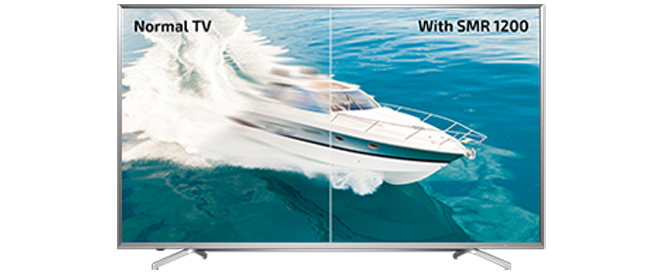
Thankfully, while Motion Smoothing is usually turned on by default, the setting can be manually disabled on many TVs through a few simple steps. Here's a quick rundown of each major brand's term for Motion Smoothing along with details on how to turn off the setting on most current models:
Sony - MotionFlow
- Open the Picture Settings menu
- Select the Advanced Picture Settings option
- Navigate to the Motion submenu
- Set the MotionFlow setting to Off to disable it completely
Samsung - Auto Motion Plus
- Open the Picture Settings menu
- Select the Expert Settings option
- Navigate to the Auto Motion Plus submenu
- Set the Auto Motion Plus setting to Off to disable it completely
LG - TruMotion
- Open the Picture Settings menu
- Select Picture Options
- Select TruMotion and set it to Off to disable it completely
VIZIO - Motion Control
- Open the Picture Settings menu
- Select the More Picture option
- Select Motion Control
- Set Reduce Judder to 0 and Reduce Motion Blur to 0
Panasonic - Intelligent Frame Creation
- Open the Picture Settings menu
- Select Intelligent Frame Creation and set it to "Off"
TCL - Action Smoothing
- Open the Options menu
- Select Advanced Picture Settings
- Navigate to Action Smoothing and set it to "Off"
Hisense - Motion Enhancement
- Open the Picture Settings menu
- Select Advanced Picture Settings
- Navigate to Motion Enhancement and set it to "Off"